 How to build a Linport portfolio by "hand": How to build a Linport portfolio by "hand":
 Linport is used for moving translation related files and information on the project level between translation tools.
A Linport portfolio is designed to contain transation related files and information in a standardized directory structure.
This directory structure on the top level contains two folders: portinfo and payload.
portinfo contains information and resources pertaining to the entire portfolio and by extension the entire translation project being contained in the portfolio.
Information that cannot be stored in its own file such as: What is the target audience for this project? Should be stored in a metadata.xml file which is contained in the portinfo folder. (See step 4 for more details).
payload then contains all of the individual files along with their associated resources such as termbases or translation memories etc.
The payload folder contains language folders named after their ISO language codes as indicated in step 5.
The language folders will then contain one folder per written document. This folder is to contain not only the document but all associated files as we will see.
The language folders indicate the language of the files that they contain.
The document folders are named after the document and will typically have the same name.
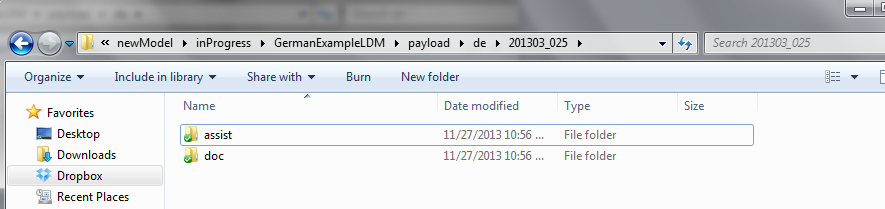
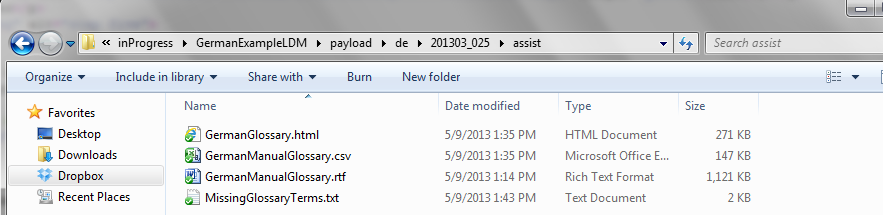
Inside the document folder there should be a doc folder and an assist folder
The doc folder contains only one item, the document. The assist folder contains all other resources, including termbases, translation memories, graphics, etc.
The assist folder optionally will have an metadata.xml file similar to the portfinfo/metadata.xml file. Information relevant to this particular document that is not contained in the portinfo/metadata.xml file should be contained in the document assist/metadata.xml file
Here is a tree diagram of the Linport portfolio directory structure:
Linport portfolio
--->portinfo
------>misc folder (contains any file/resource pertaining to the whole portfolio)
------>metadata.xml (contains information about the entire portfolio)
--->payload (contains lang folders)
------>de (German for example, but could be any language. This indicates that all documents contained are German)
--------->document1 (document folder, named after the document itself)
------------>assist (contains all files pertaining to the individual document)
--------------->termbase.tbx (example termbase)
--------------->memory.tmx (example translation memory)
--------------->metadata.xml (contains information about the individual document)
------------>doc (contains the document)
--------------->document1.docx (The document itself, could be any extension)
--------->document2
------------>assist
--------------->termbase2.tbx
--------------->memory2.tmx
--------------->metadata.xml
------------>doc
--------------->document2.docx
------>en (English for example, but could be any language. This indicates that all documents contained are English)
--------->document3
------------>assist
--------------->termbase3.tbx
--------------->memory3.tmx
--------------->metadata.xml
------------>doc
--------------->document3.docx
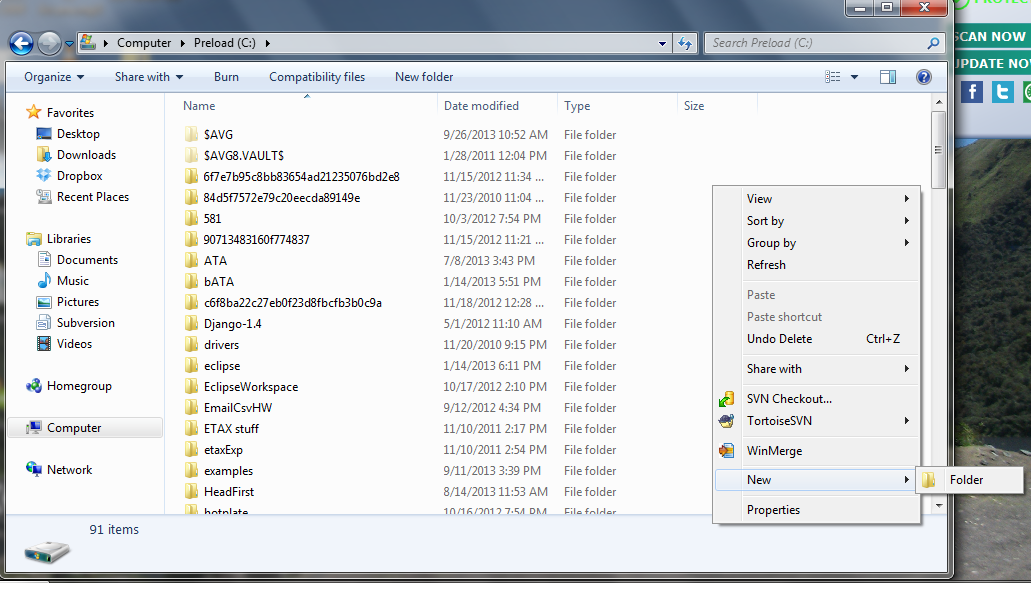
Open windows explorer to perhaps the c-drive or some other location you will remember
Right click somewhere not on an existing file or folder
Select new > folder
Right click somewhere inside the folder created in step 1
Select new > folder
name the new folder 'portinfo'
Right click again somewhere inside the folder created in step 1
Select new > folder
name the new folder 'payload'
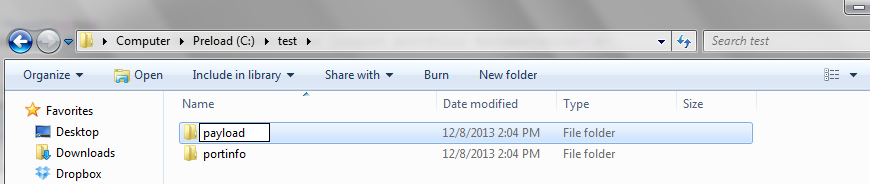
Right click somewhere inside the folder created in step 1
Select new > folder
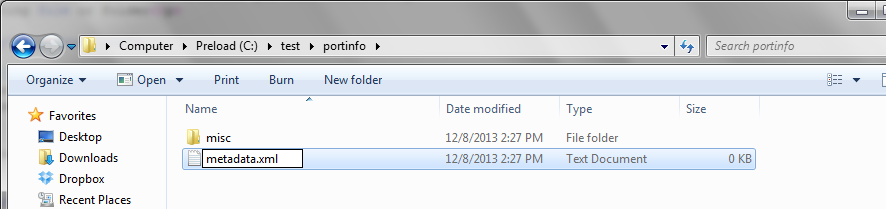
name the new folder 'misc'
Add any miscellaneous files that are relevant to the entire portfolio to the new 'misc' folder
Select new > Text Document
name the new file 'metadata.xml'
Another option is to use an xml editor or a text editor such as notepad to create and save a new file with the .xml extension
name the new file 'metadata.xml'
Open the metadata.xml file in an xml or text editor
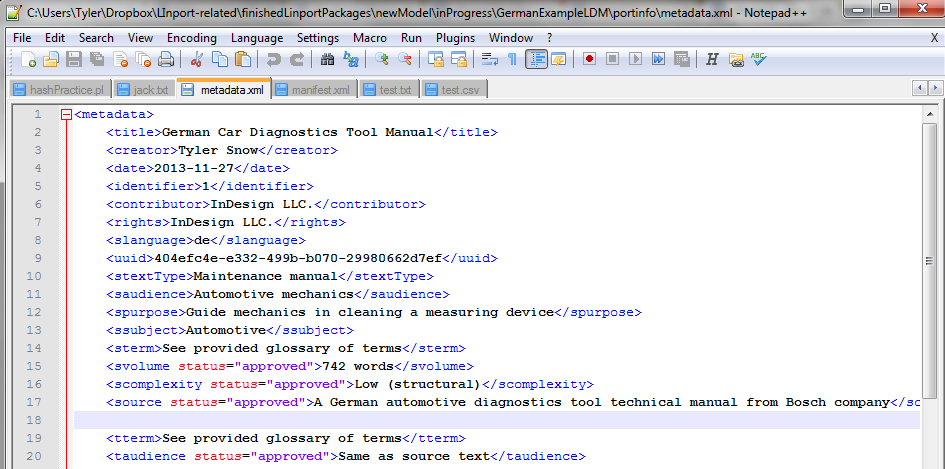
Use the metadata reference page found: here (http://dragoman.org/linport/metadata.html) to create a metadata.xml page filled with information that describes the whole portfolio
All information is stored between 'metadata' tags. All other available labels can be taken from the reference page.
All metadata elements are optional. However, the slanguage and tlanguage elements should be included if you are planning on splitting the portfolio into TIPPs
As shown in the picture below, add metadata information in between starting and ending element tags using the appropriate label as the tag name
Right click somewhere inside the payload folder
Select new > folder
name the new folder with the language code of the language of the document you will add to the portfolio
A list of language codes can be found here (http://msdn.microsoft.com/en-us/library/ms533052(vs.85).aspx)
Repeat for as many languages as needed
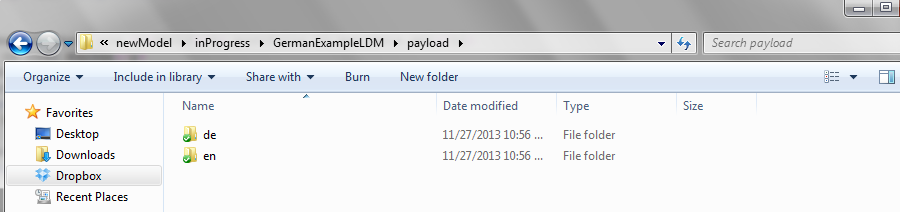
Right click somewhere inside the language folder
Select new > folder
Name the folder the SAME NAME as the document it will contain
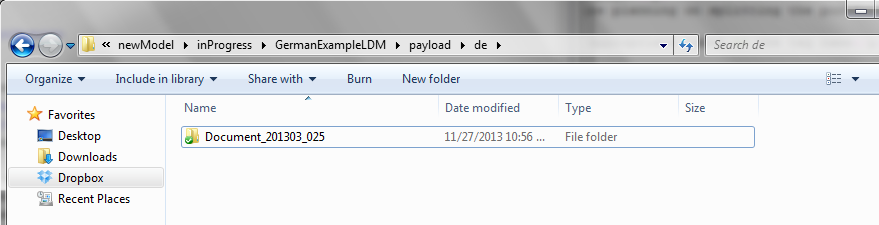
Right click somewhere inside the document folder
Select new > folder
Name the folder 'doc'
Right click somewhere inside the document folder
Select new > folder
Name the folder 'assist'
Each doc folder can only contain one file
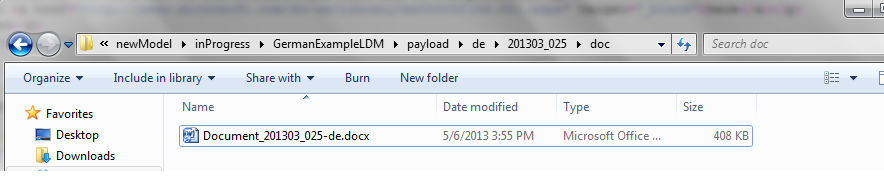
These documents pertain only to the document contained in the doc folder, not the portfolio as a whole
The assist folder can also contain a metadata.xml file like in step 4. This metadata.xml file would only contain metadata information about the document contained in the doc folder, not the portfolio as a whole.
Please see step 4 if you desire to create a metadata.xml file for this document.
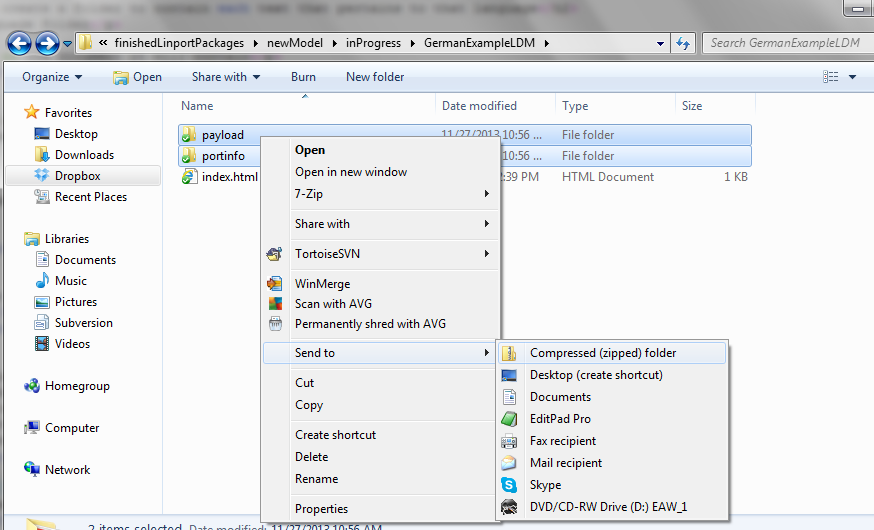
Go to the folder containing the portinfo and payload folders
Highlight both the portinfo and payload folders using Ctrl + left click
Release the Ctrl button and right click the highlighted folders
Select Send to > Compressed (zipped) folder
Name the new Linport portfolio (the .zip file)
If you would like to split your portfolio into TIPPs
click here (http://split.linport.org)